
Verify Your Hours
Thank you for volunteering with the Redwood Empire Food Bank! To ensure your organization accepts your hours, please carefully follow the instructions below.
General Guidelines
Account & Reservation: Each person must create their own account and register for a shift before attending the shift.
Check-In: Upon arrival, check in with a staff member or use one of our kiosks.
Do not use your personal device to submit hours through the volunteer account.
Court-Ordered Hours
We currently do not accept court-appointed volunteers. Please contact the Court Referral Program at 707-573-3360.
School & Employer Requirements
We are happy to sign off on your hours after your shift. However, we cannot print forms for you. If you need a printout of your volunteer resume, please see the instructions below. Online verification is also accepted and can be requested to: volunteers@refb.org
Tips for Verification:
All necessary paperwork should be pre-filled with relevant information, allowing staff to review and sign off at the end of your shift.
Allow at least 2 business days for your hours to be approved.
Common Challenges to Avoid:
Using a name or email that doesn’t match your account (e.g., a nickname instead of your legal name).
Parents making reservations and recording hours on behalf of their student.
Showing up without registering for the shift (hours cannot be credited without one).
Failing to check in for your shift upon arrival (use the kiosk or staff check-in).
Download Volunteer Resume
Desktop Instructions:
Log in to your account at volunteer.refb.org.
At the top of the page, click the circle with your initials (or your profile picture, if you've uploaded one). From the drop-down menu, select View Profile.
On the left side of the page, beneath your name, click the green Volunteer Resume button. A date range selection will appear. Choose your desired date range and click Go.
Your Volunteer Resume will download to your computer. It includes your name, the selected date range, and a list of your completed volunteer shifts.
Smartphone Instructions:
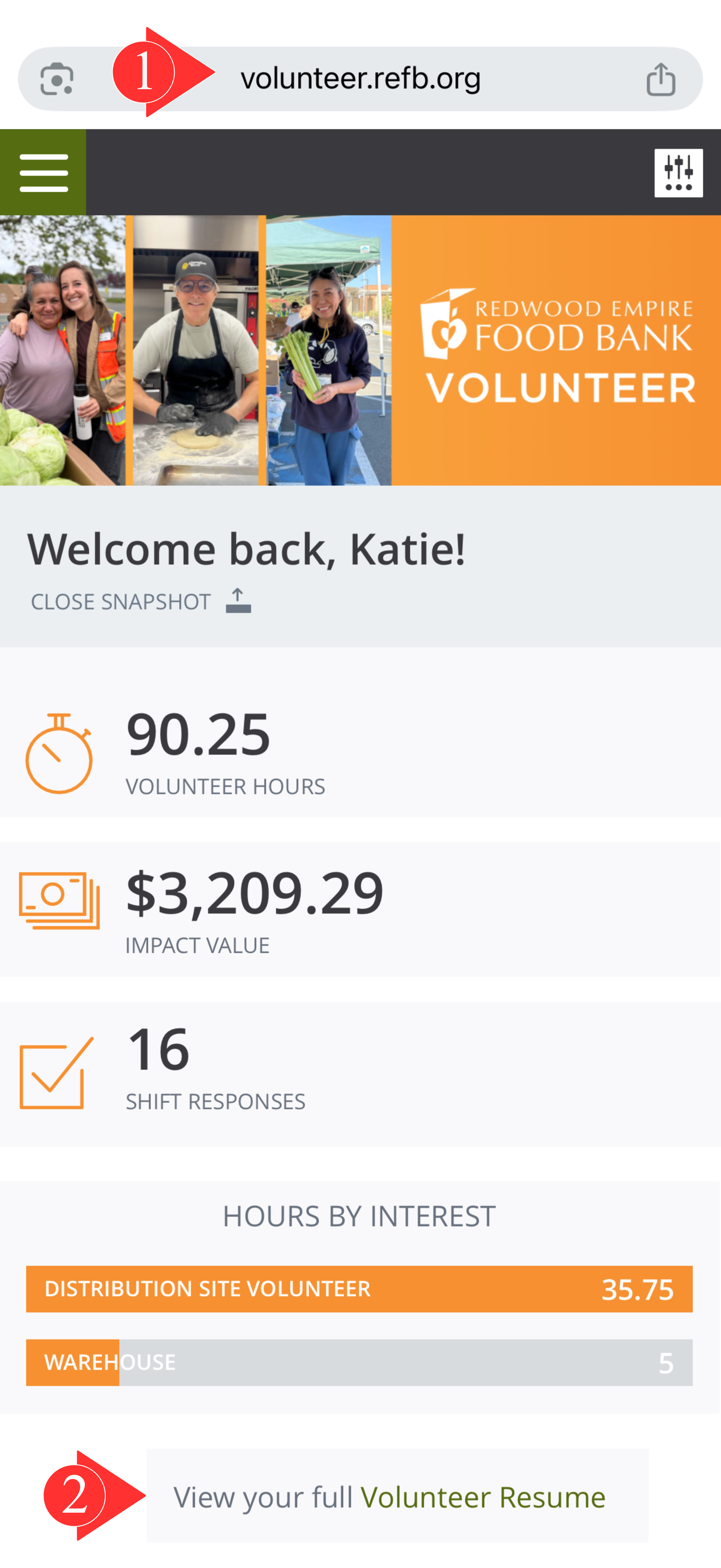
Log in to your account at volunteer.refb.org.
On the home screen, scroll down to the Hours by Interest section. Below it, tap the Volunteer Resume link.
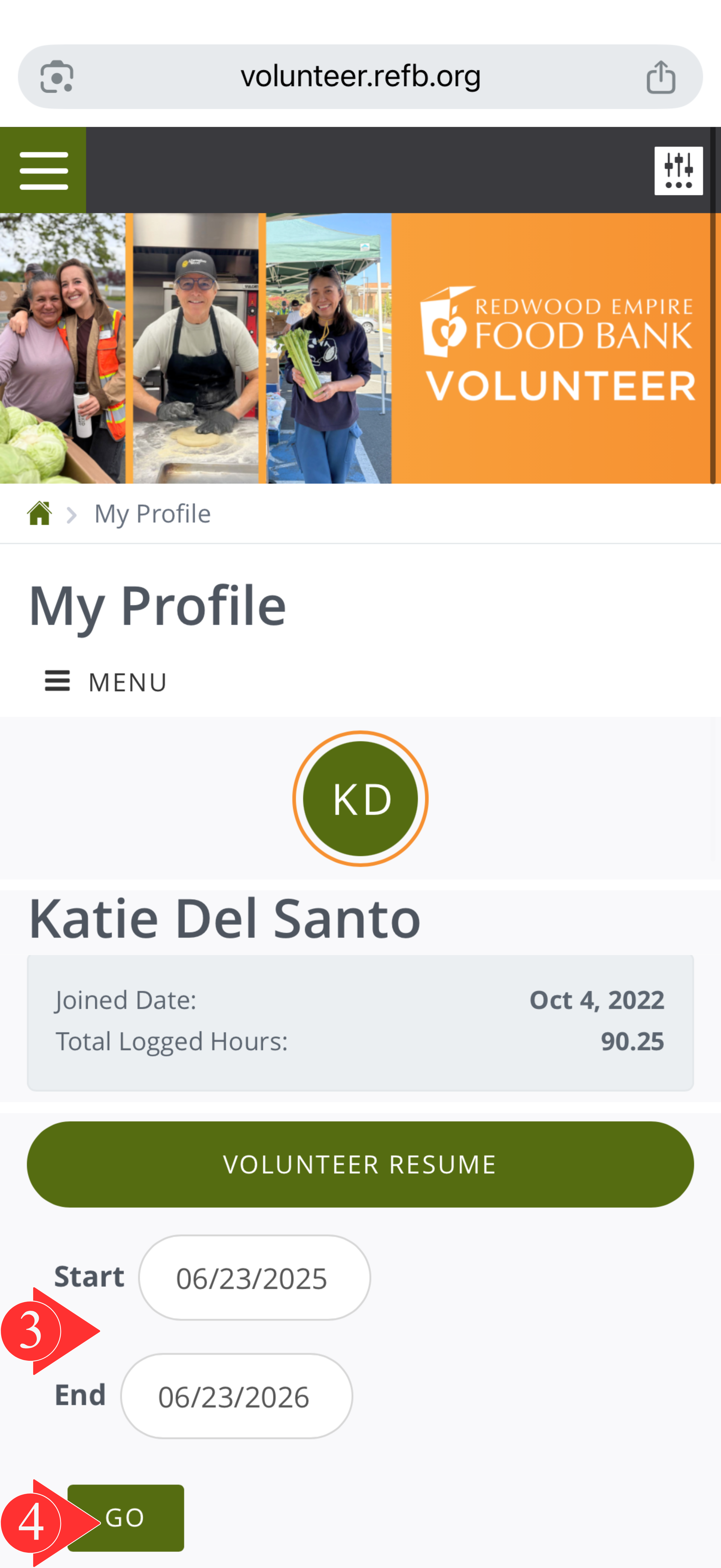
On the Volunteer Resume page, enter your desired date range beneath the green Volunteer Resume button and tap Go.
Your Volunteer Resume will download to your device. It includes your name, the selected date range, and a list of your completed volunteer shifts.
Need help? Email us at volunteers@refb.org.

